
Blog
How to Remove Third-Party App Access After a Social Media Security Incident
Published
A publishing notice should tell customers what to do
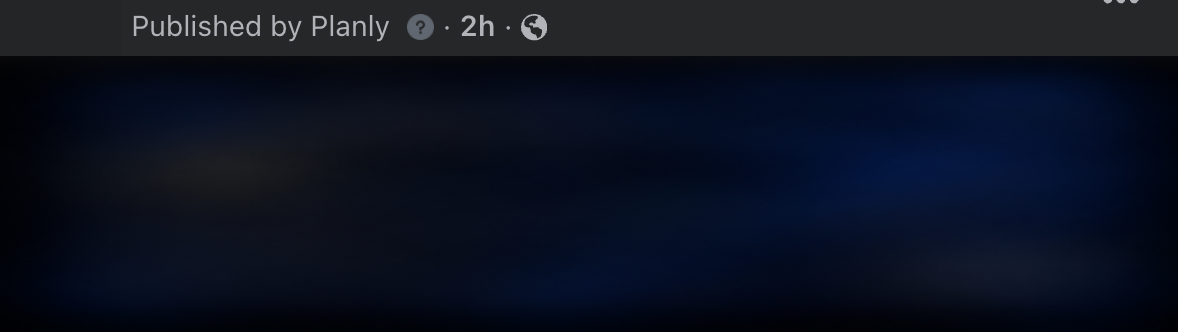
On Thursday, November 19, 2026, a Planly customer reported an unauthorized Facebook post promoting a cryptocurrency-related virtual card. A screenshot supplied by the customer shows Facebook’s “Published by Planly” label. That label documents the publishing attribution visible on the post. It cannot establish who initiated it or how it was published. Planly is a social media scheduling service that can publish to connected accounts. In a screenshot supplied by the customer, an in-app notice described a publishing issue and told users to check for unauthorized posts, change their Planly password and wait before reconnecting their social accounts.
The customer says the notice appeared hours later and a support email arrived the next day. In the supplied email, Planly said the issue affected more than that customer’s account, said it had implemented a fix, and advised the customer to delete the post and check for other unusual activity. We did not find a public Planly incident statement in the sources we checked. The screenshots establish what the notice and email said. The cause, number of affected accounts, whether data was accessed, and whether any integration credentials were exposed remain unverified.
A resolution message still needs specifics
Calling an incident a publishing issue can leave customers guessing about what to check. The first useful notice should explain what the company knows, what remains unknown, what customers can do now and where the next update will appear. If a connected app may have been involved, say whether customers should revoke access directly at the social platform, and whether they should wait before granting it again.
When brand protection takes priority over those details, customers lose time they could spend preventing harm. A compromised account can make a crypto scam look like an endorsement. Customers can lose money, and the business can lose credibility or face complaints, contractual claims or notification duties depending on the facts and applicable law. If customer information or payments may be involved, document what happened and involve counsel promptly.
What to do if your account starts posting scams
Open the social platform directly from a trusted device. Revoke access for the suspected app and pause any scheduled campaigns it controls. Review posts, messages, active sessions, administrator roles and recovery settings. Record the post URL, timestamp and a screenshot before removing or reporting it, where that can be done safely. Change compromised or reused passwords, and secure the recovery email account too.
Warn followers from a channel you still control, such as your official website or a separate verified account. Say which posts or messages to disregard and tell people to avoid sending money or sharing verification codes. Anyone who paid should contact their bank or payment provider immediately through an official channel. Spectrum News has reported on fraud using stolen social accounts. California’s attorney general has warned about crypto scams, and AwareXone’s guide describes how organizations can respond to scam messages sent through a compromised Instagram account.
If a connected app posts without approval
Take these four steps from a device you trust.
- Revoke accessOpen the affected platform and disconnect the suspected app. Pause any publishing it controls.
- Record and removeSave the post URL and time. Capture a screenshot for your records, then remove or report the post.
- Warn followersUse a channel you still control. Tell followers which posts to ignore and where updates will appear.
- Secure sign-inEnd unfamiliar sessions, secure the recovery email and turn on two-factor authentication.
Don’t click suspicious links, share personal information, or send money without verifying the source.
How to remove third-party app access from your Google Account
On a computer or in a mobile browser on Android or iPhone, open your Google Account’s Third-party connections page. Use your profile picture to confirm that you are reviewing the correct account. You can filter the list by connection type to see which specific apps can use your Google data. Look separately at Sign in with Google, linked accounts and apps with access to your Google Account. Choose an app, review the connection and its permissions, then use the applicable option to remove access, stop using Sign in with Google, or delete the connection. Repeat the process for each work and personal Google account. The video below walks through the settings on screen. If you still need a service that relies on Google sign-in, set up and test another way to sign in before disconnecting it.
A linked app can still have account access years after you stopped using it. Check what the app’s developer can read or edit. For example, access to a Google Calendar and access to Drive files are distinct permissions. An integration with Drive access may be able to reach specific files or a broader set, depending on what was granted. Sign in with Google alone does not grant access to Drive, Gmail or Google Photos. Photos permissions are separate, and Google now generally limits its Photos Library API to app-created content, with a separate picker for items you select. Information a vendor already copied, such as files, selected photos or profile details, could still be exposed if that vendor is compromised. Those details can make phishing more convincing. Revoking access stops future access under that grant. If a vendor retains copies, use its privacy settings or contact the developer to ask how to manage or delete that stored data.
How to remove access for third-party apps on Instagram
Open your Instagram profile and tap the menu. In Settings and activity, look for Website permissions, then Apps and websites. Open Active, select the app you no longer trust or use, and choose Remove. If you manage a professional profile through a Facebook Page or Meta business portfolio, review the associated Business Integrations and business permissions too. Some publishing access is granted there.
How to remove connected apps from TikTok
Open TikTok, select Profile, then open the menu and choose Settings and privacy. Go to Security & permissions, then Apps and services permissions. Select the app, review what it can access, and tap Remove access. If a team manages your TikTok through Business Center, review account authorizations there as well.
How to revoke access for connected apps on X
Open X and go to Settings and privacy, then Security and account access, then Apps and sessions. Open Connected apps, select the integration, and choose Revoke access. Return to Apps and sessions and review Sessions separately. End sessions you do not recognize. A session and a connected app are separate ways to access an account.
How to enable 2FA and use FIDO security keys
Google and Gmail. Open Google Account, select Security and sign-in, then 2-Step Verification, and follow the prompts. Enroll a compatible physical security key through Google’s security-key setup. A FIDO2 key can also hold a passkey if you choose that option. Test a spare key and keep it somewhere separate.
Instagram. Open the profile menu and go to Accounts Center or Meta Account, then Password and security, then Two-factor authentication. Select your Instagram account and choose Authentication app. Follow the setup prompts, confirm the generated code and save backup codes privately. Meta has announced passkey support for Instagram through Meta Account. Availability can depend on the account and rollout. If Passkey appears under Password and security, use the supported setup methods shown there. The documented Instagram 2FA flow uses an authenticator app. We could not verify a universal option to enroll a physical FIDO key as Instagram’s second factor.
X. Go to Settings and privacy, then Security and account access, Security, and Two-factor authentication. Select Security key and follow the browser prompts to register it. Add a spare if possible and save the backup code somewhere secure. Use an authentication app if you cannot register a key.
Which app permissions should you keep?
Two-factor authentication protects sign-ins. A connected app may still act within an existing permission grant, so remove access at the account provider even if you have already changed your password or turned on 2FA. Before approving a new tool, check who operates it, what access it wants and whether it needs permission to post or read data. For business accounts, assign someone to review the app list when staff leave or a vendor contract ends. Keep only connections you can explain.
Related reading
- Account recovery service for Instagram, Gmail and Facebook
- Gmail account recovery
- Instagram account recovery
- Are cybersecurity apps safe? What to check before you install one
- Social Media Account Recovery
Sources and settings guides
- Planly’s description of its automatic publishing service
- Spectrum News · Crypto scams using stolen social media accounts
- California Attorney General · Consumer warning about cryptocurrency scams
- AwareXone · Responding to crypto or betting DMs from a compromised Instagram account
- FTC · Data Breach Response: A Guide for Business
- Google Account · Review your third-party connections
- Google Account Help · Manage linked apps
- Google Photos · Changes to third-party photo permissions
- Google Account Help · Use a security key for 2-Step Verification
- Instagram Help · Manage connected apps and websites
- Meta · Passkeys for Instagram through Meta Account
- Meta · Use two-factor authentication for Instagram
- TikTok Help · Connect to and remove access for third-party apps
- X Help · Manage connected apps and sessions
- X Help · Set up two-factor authentication and security keys